Proxmox VE is a powerful hypervisor and virtualization OS that makes working with virtualization and containers quite easy. In this blog post we will explore how to build a server for our Data Science and Data Engineering task.
Requirements
We will be using an ubuntu LXC as our base operating system and then install all the necessary data science and data engineering packages. These packages include Notebooks, Data Engines, SQL Drivers and Programming Languages(Python, Julia, Rust, R) and ML Data Science packages.
First we will set up our LXC container and adjust the specs as we need and set a static IP so that we can use it from anyplace in our home network.

Upon starting our LXC , we will install our house keeping tools and packages
apt update
# process monitors and good cli ux
apt install btop tmux scp python3
# install julia
curl -fsSL https://install.julialang.org | sh
We will need to setup Pyspark hence we need JAVA
Inside your Proxmox LXC terminal, run the following commands to install the required Java version:
apt update
apt install openjdk-17-jdk -y
2. Update Environment Variables
You must point your system and virtual environment to the new Java installation.
- Locate the path: Usually
/usr/lib/jvm/java-17-openjdk-amd64. - Apply to current session:bash
export JAVA_HOME=/usr/lib/jvm/java-17-openjdk-amd64 export PATH=$JAVA_HOME/bin:$PATH - Make it permanent: Add these lines to the end of your
~/.bashrcfile or your virtual environment’sbin/activatescript.
Once updated, verify the version and run your command again:
java -version # Should output 17.x.x
We can now install our python packages inside our virtualenv
# create virtualenv
python3 -m venv venv
# activate and install
source venv/bin/activate
pip install jupyterlab marimo pyspark pandas numpy seaborn matplotlib plotly-express nltk textblob spacy neattext pytorch tensorflow scikit-learn statsmodels 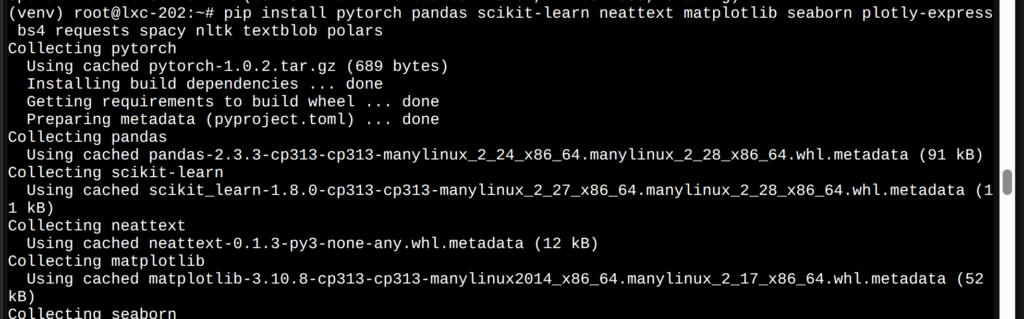
Once we have installed all the necessary packages, we can start up our workspace.
Setting Up Workspace
Our workspace can be a Notebook environment such as Jupyter Lab or Marimo or VS Code. Now how do you access these notebook servers from outside your proxmox LXC? Since most of these notebook servers run on localhost we can set the host to 0.0.0.0 so that it is picks up the IP address of the LXC and by that we can access it from outside.
# marimo notebooks
marimo edit --host 0.0.0.0

You can now visit the link in any browser like below

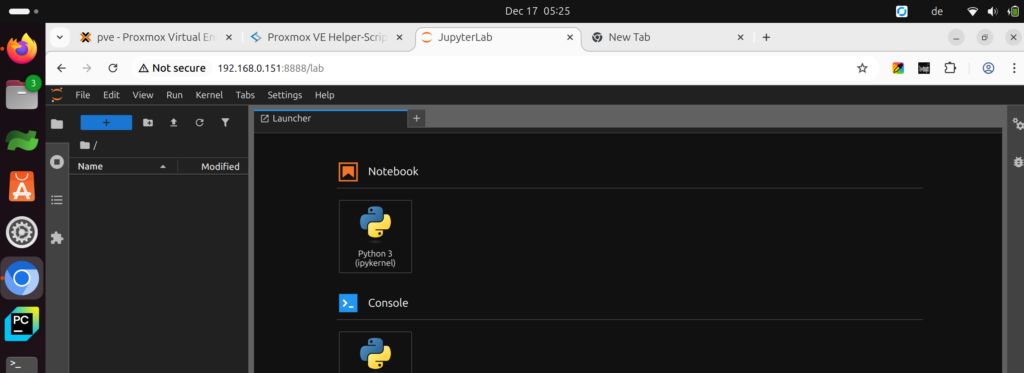
For Jupyter Lab
# jupyter lab --ip=0.0.0.0 --port=8888 --no-browser --allow-root--ip=0.0.0.0: Binds the server to all network interfaces instead of justlocalhost.--port=8888: Specifies the port (8888 is the default; change if needed).--no-browser: Prevents the LXC from trying to open a web browser locally.--allow-root: Required if you are running the command as the root user.

You can then visit it in the browser
To avoid typing these flags every time, generate and edit a configuration file:
- Generate config:
jupyter lab --generate-config - Edit file: Open
~/.jupyter/jupyter_lab_config.py - Uncomment and update these lines:
c.ServerApp.ip = '0.0.0.0'
c.ServerApp.open_browser = False
c.ServerApp.port = 8888
Running VS Code on Proxmox
Using code-server ,we can spin up a vs code instance and view it in our browser. This is useful if you want to use vs code as your workspace.. To set up you can do so via
#install
curl -fsSL https://code-server.dev/install.sh | sh
# run server
code-server --bind-addr 0.0.0.0:8080
You can then view it in your browser. The password is found in this location and you can also change it as you wish
/root/.config/code-server/config.yaml

After add the password, you can now see VS Code in your browser
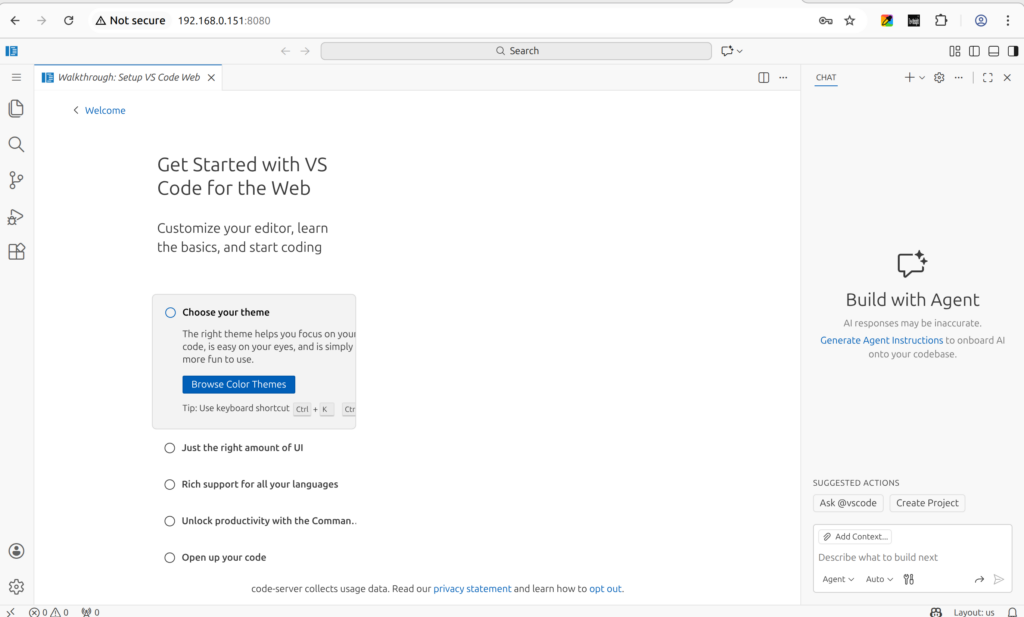
As you can see all the features of VS Code is available

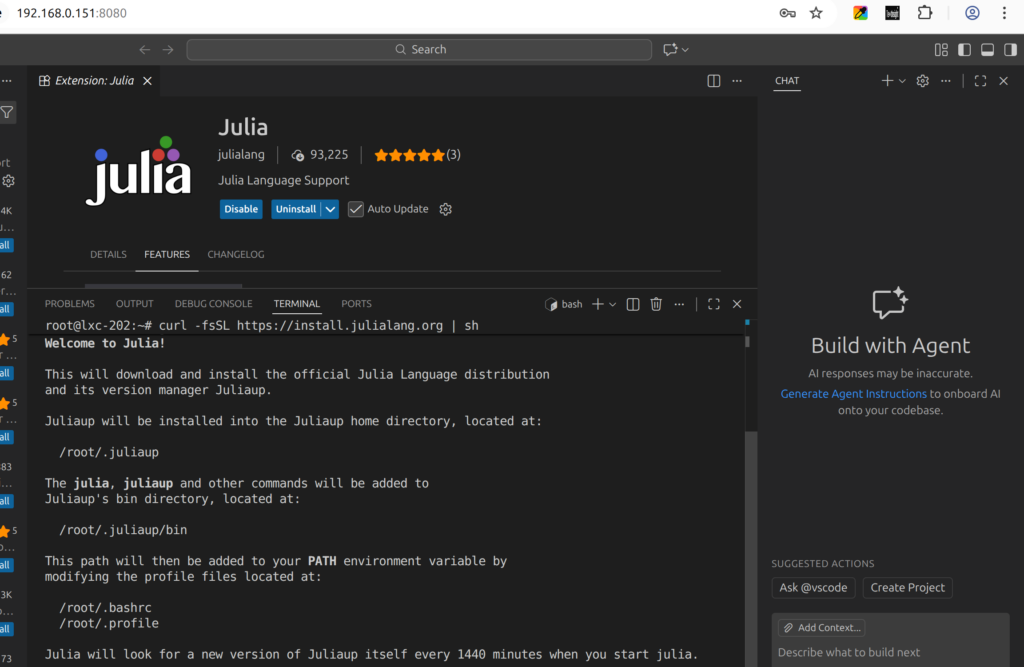
We can use the terminal from our vs code server which will connect to our LXC instance. An example can be seen below where we even install julia from vs code.
Setting Up Pyspark in Proxmox
After install java and pyspark we can run a pyspark session from our notebook and view it directly from our proxmox
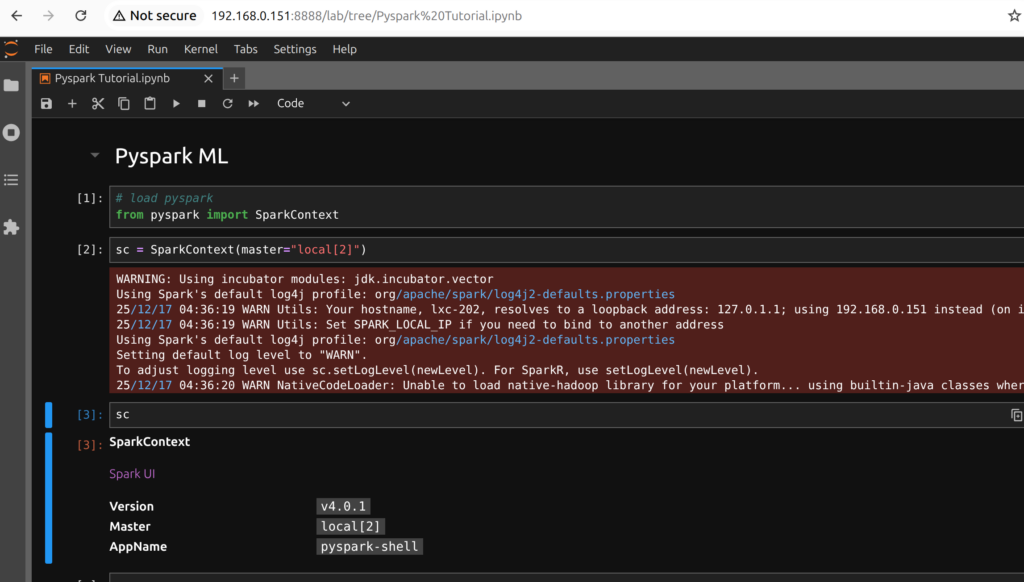
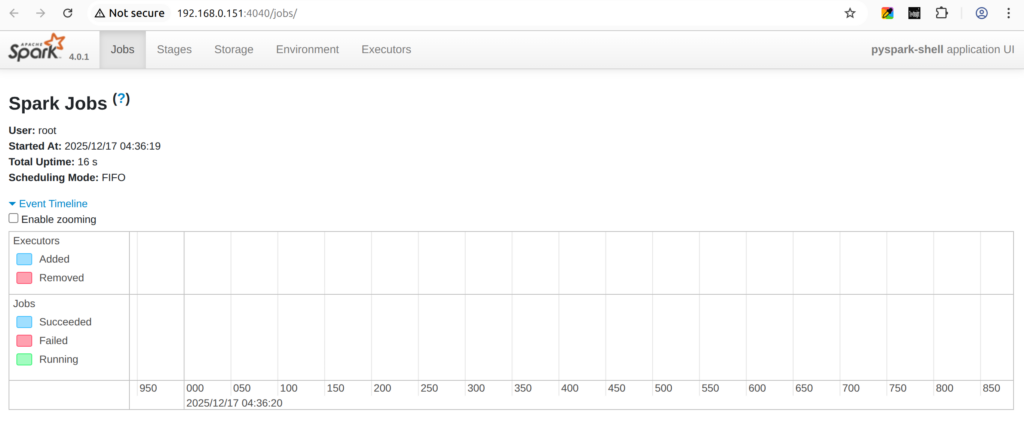
You can view the Spark UI from the same IP but on a port 4040
We can also add more data science tools to our server such as MLFlow, DVC,etc. Thank you for your attention
Jesus Saves
By Jesse E.Agbe(JCharis)