Some time ago we build an AI server using Proxmox on a mini-pc. During this task, we installed several tools and open weights models via ollama. In this article we will explore how to access a running LLM server on Proxmox.
Setting Up
We will be using ollama as usual and then expose it from our AI server on Proxmox.
First lets get some open weights models and then check if it is running
# list models
ollama list

# check for running ollama
ollama ps
Next we will start up ollama server. By default ollama runs on localhost, however since we want to be able to access it from outside Proxmox, we will set the OLLAMA_HOST to 0.0.0.0
OLLAMA_HOST=0.0.0.0:11434 ollama serve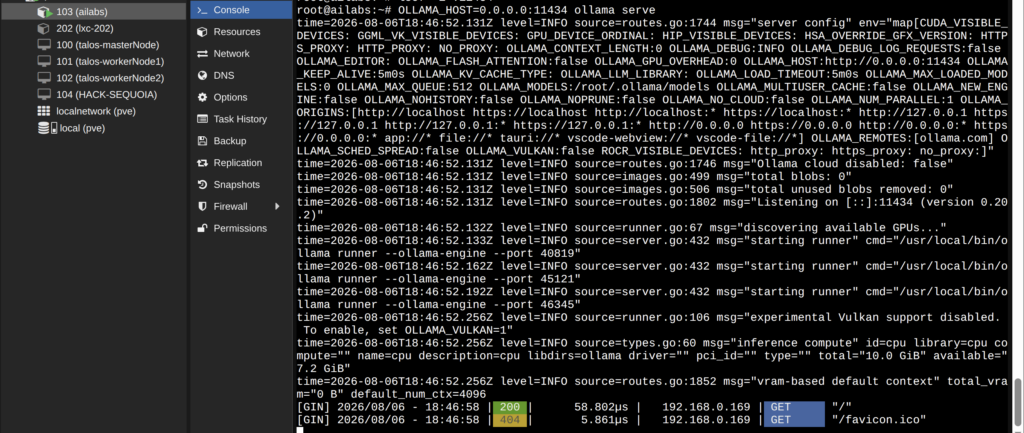
You can also set the environment variable directly in your current session
export OLLAMA_HOST=0.0.0.0:11434
# run ollama
ollama serve
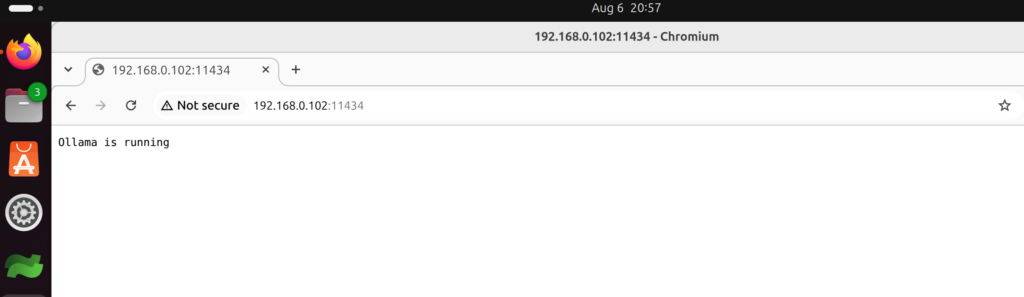
You should be able to access it using the IP of your AI server on Proxmox from the browser or anyclient
Run in the Background (Persistent)
In case you want to keep it running even after you have closed the proxmox shell for your AI server, you can run it in the background as below
nohup OLLAMA_HOST=0.0.0.0:11434 ollama serve > ollama.log 2>&1 &Troubleshooting Busy Port
In case your port is busy and have an already listening process you can kill the process and stop ollama as below

# check listening process
lsof -i :11434

# kill process via PID
kill 2377

# stop ollama service
systemctl stop ollama
I hope this was helpful
Happy Hacking
Jesus Saves
By Jesse JCharis